Imagine a club returning to a woodland it last mapped several years ago. A path has faded, a clearing has grown over, and a new fence changes the way runners can cross the ground. OpenOrienteering Mapper gives that club a free, open-source editor for revising its orienteering map. It runs on Windows, macOS, Linux and Android, combining drawing tools with background imagery, geographic positioning and the sport's specialized symbols.[1]
The interesting part is the journey between desk and forest. Mapper can carry an existing map into fieldwork, let someone record what has changed, and bring those observations back for careful drawing. For a club preparing its next event, that makes the project worth understanding through one practical question: how does something seen on the ground become something another person can navigate by?
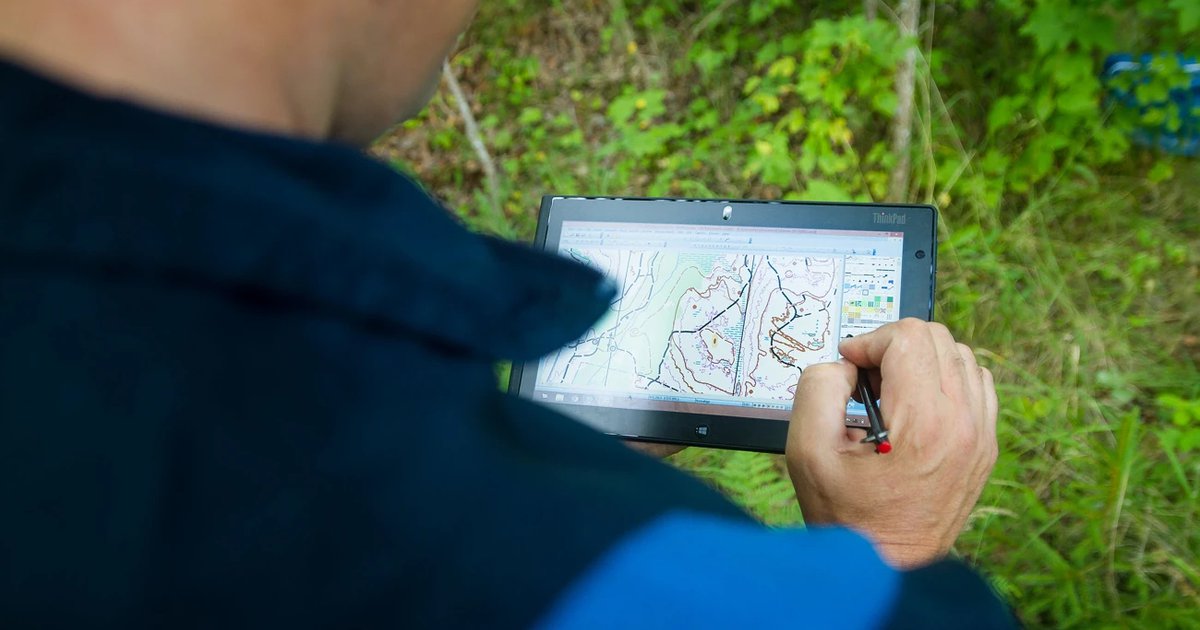
That federation's account explains why fieldwork survives even when good aerial imagery and lidar are available. The mapper must judge how terrain will appear to someone reading the map in the forest. Preparatory data can reduce the work, but interpreting a feature's usefulness still requires experience on the ground.[2] Mapper provides a place to preserve and express those judgments.
Choose the language before drawing
Creating a map begins with two decisions: its scale and its symbol set. Under File → New, Mapper asks for both. These choices establish how the map will communicate before the first path is drawn.[3]
The distinction matters because an orienteering symbol has an agreed meaning. A mapper inventing a convenient local sign might make the page understandable to club members while confusing a visiting runner. The manual therefore emphasizes the international mapping standards and discourages improvised symbols for local features.[3]
Scale also controls the reading experience. The manual explains that enlarging a forest map from 1:15,000 to 1:10,000 improves legibility; the enlargement is not permission to squeeze in additional detail.[3] That is a revealing constraint for a digital editor. Zooming lets the author work closely, but the eventual reader receives a finite sheet of paper. The drawing has to survive that reduction.
Keep the background available for comparison
Mapper calls its supporting layers templates. An aerial photograph, a GPX track and an older map can all serve as templates. In Templates → Template Setup Window, their order, visibility and opacity can be adjusted around the map being drawn.[4]
Consider the fading path in our imaginary woodland. An old map can show where it used to run; a recent walk can supply a track through the same area. Keeping both available lets the mapper compare evidence while deciding how to represent the present terrain. Neither source alone establishes how recognizable the path will be to a runner.
Some templates arrive with geographic positioning information; others must be aligned manually. A scanned field sketch belongs to the latter category unless location information has been supplied separately. There is also a practical limitation worth knowing before experimenting: the manual says template changes are outside the general undo/redo system, and advises saving first.[4]
Give the map a position on Earth
Map → Georeferencing establishes the relationship between coordinates on the paper map and coordinates in the world. Its controls cover the coordinate reference system, a reference point, map north and scale compensation. This is what lets geographic data land in the appropriate place in the drawing.[5]
North deserves attention. Magnetic north, true north and the north direction of a projected grid can differ. Mapper's declination and grivation settings account for those relationships so the map can be oriented to magnetic north. The manual recommends checking a modeled declination with a precise compass when accuracy matters.[5]
An inherited map creates another complication. The desktop-preparation guide warns that an old drawing may contain local distortions: aligning one part does not necessarily align the rest. Mapper does not provide an automatic tool to correct that distortion.[6] A satisfactory match at one junction is therefore a starting observation, rather than proof that the whole woodland is correctly positioned.
Take observations home in a usable form
The documented Android workflow starts on the desktop, where the map and its templates are prepared before transfer to the mobile device. Live GPS display requires the map to be georeferenced.[6] That division suits the work: coordinate setup can be settled at a desk before the surveyor needs to concentrate on the ground.
On the device, Touch Mode offers two especially useful ways to work. The mapper can draw map objects, or use Paint on template to make freehand field notes on a raster layer for later interpretation. Painting changes that template; it does not create finished map objects. The manual recommends keeping such painting off the original base imagery to avoid damaging useful detail.[7]
Suppose the new fence is awkward to draw precisely on a small screen. A separate sketch layer can preserve its observed course until the mapper returns to the desktop. That is a deliberate intermediate stage: the observation has been recorded, while its final symbol and geometry remain to be resolved.
The location display also records a GPX track, but the manual warns that recording may pause when the screen is off or the app is in the background. Temporary position markers and temporary traces are not saved with the map.[7] Someone relying on those aids should distinguish a visible guide from a durable record before leaving the site.
Finish with the next mapper in mind
A club's existing conventions matter alongside the editor's built-in tools. British Orienteering distributes symbol sets in OpenOrienteering Mapper format and advises careful checking after symbol conversion. Its suggested comparison method is concrete: retain the old map and open it as a background in the converted file.[8] A successful conversion still needs a visual inspection.
Mapper supports its native .omap and .xmap files and specified versions of OCAD's .ocd format. It can export PDF and raster images, among other formats.[9] These serve different purposes. The exported sheet is useful to the runner; the editable map is what a future volunteer needs when that fence changes again.
For a small club with an experienced mapper or access to a mentor, I would begin with one familiar patch of terrain. Carry a copy through preparation, a short survey, desktop revision and a printed check at the intended scale. Keep the working files and supporting templates together in the handover. A club without anyone able to assess terrain or cartographic standards still needs that expertise, even when the software costs nothing.
The reward is a map whose decisions can be revisited. Next season, another volunteer should be able to find the observations, understand the symbols and make the next correction. OpenOrienteering Mapper gives that continuing work an accessible home.
Sources
- OpenOrienteering, “Mapper” — project purpose, supported platforms, drawing features and exchange formats.
- Swedish Orienteering Federation / Hittaut, “Bakom Hittauts kulisser – del 1: kartritning,” April 5, 2024 — independent account of preparation, field interpretation and mapmaking tools; source of the fieldwork photograph. In Swedish.
- OpenOrienteering Mapper User Manual, “Starting a New Map” — scale, standardized symbols and the purpose of enlargement.
- OpenOrienteering Mapper User Manual, “Introduction to Templates” — supporting layers, positioning, visibility and the undo/redo limitation.
- OpenOrienteering Mapper User Manual, “Georeferencing” — coordinate systems, reference points, magnetic north and scale compensation.
- OpenOrienteering Mapper User Manual, “Preparing a Map on the PC” — desktop preparation for Android, live positioning and limitations of distorted historical maps.
- OpenOrienteering Mapper User Manual, “The Touch Mode User Interface” — template painting, GPX recording and temporary drawing aids.
- British Orienteering, “Resources for Mappers” — independently supplied Mapper symbol sets and checks after conversion.
- OpenOrienteering Mapper User Manual, “File Menu” — native and OCAD file support, export formats and printing.