Imagine opening a newly imported photo library. Every thumbnail appears, including the family photograph whose caption took three phone calls to reconstruct. Then you search for the person in it and get nothing. Moving into digiKam, the open-source photo manager, deserves a stricter acceptance test: the knowledge attached to a picture must make the journey, too. Start with a small collection that can travel into digiKam and back out again.[1]
The project's migration documentation describes a practical bridge: have the previous application write metadata into XMP sidecars, the companion files that carry information alongside photographs. digiKam can read these to populate its database; it does not promise to interpret a proprietary catalog directly.[1] The following rehearsal is an engineering recommendation built around that bridge. Configuration names follow the online manual, labeled 9.2.0 when consulted; check them against the installed build.
Pack the information before moving the pictures
First preserve the old catalog, original files, and existing sidecars together. Keep that backup separate from the working copy. Ask the old application to export the descriptive fields you rely on, then record a few expected results outside either program: the exact caption, the tag hierarchy, the rating, the location. A remembered impression of the old library is a poor comparison tool.
For a rehearsal, choose perhaps 30–50 copied items with deliberately awkward cases: a RAW-and-JPEG pair sharing a filename stem, a portrait with a named face region, an accented caption, nested keywords, and a video if videos belong to the collection. This is a suggested sample size, not a digiKam limit. Include a photograph whose metadata you corrected recently; stale information is easier to spot when you know what replaced it.
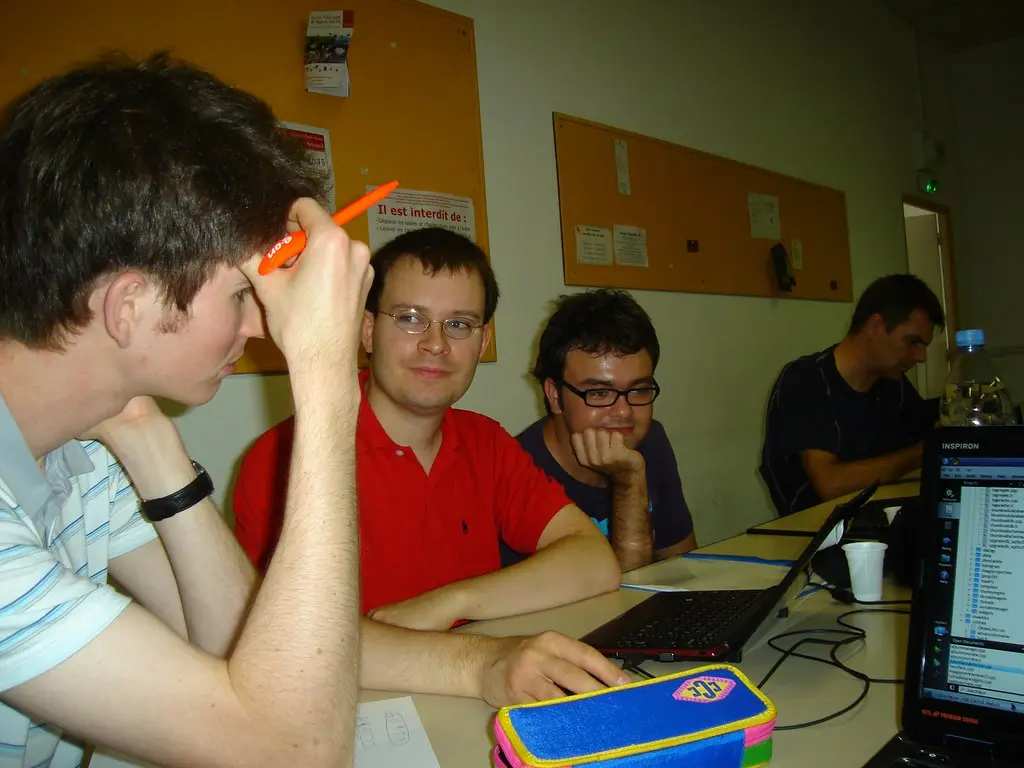
The distinction between a picture and its organization is longstanding. At the project's August 2010 sprint in Aix-en-Provence, contributors discussed migrating a Nikon collection: exported photographs could carry its keyword tree, while recreating virtual folders posed a separate problem. Their account also records work on sidecars and face metadata.[7] The archival photograph accompanying this article comes from that meeting. Today's rehearsal asks the same useful question: which parts of the old library have actually been exported?
Decide which copy of a caption wins
In Settings → Configure digiKam → Metadata, the Behavior tab selects which fields get written. Sidecars has separate read/write controls. Writing only to XMP leaves image-file metadata untouched. The documented default name is image1.dng.xmp; the commercial-compatibility option instead produces image1.xmp.[2]
The manual also states that enabling sidecar reading makes digiKam ignore embedded metadata in favor of the sidecar. Advanced settings order the namespaces consulted for fields such as captions; the first valid value wins. Lazy synchronization can defer writes until pending changes are applied or the application closes.[2]
These choices should be explicit in the rehearsal. Compare a stale embedded caption with a corrected sidecar, and check the RAW/JPEG pair for ambiguous naming. Record the result before changing a setting. Save the settings used for the successful trial. A migration needs a repeatable explanation for why the right caption appeared.
Test the return journey
After importing the sample, compare each expected value with digiKam's item properties. Then change one caption, one rating, and one nested tag in the copied collection. The important next step happens outside the catalog: inspect the files receiving those changes.
ExifTool provides an independent view. These read-only commands show XMP metadata in a JPEG and in its sidecar; substitute the filenames actually produced by your configuration:[5]
exiftool -G1 -a -s -XMP:All pilot/IMG_0042.jpg
exiftool -G1 -a -s -XMP:All pilot/IMG_0042.jpg.xmp
-G1 identifies metadata groups, -a includes duplicate tags, and -s displays tag names. Reading both files makes conflicting values visible.[5] If your workflow intentionally writes only sidecars, an unchanged embedded caption is expected; the receiving application must still know which value to use.
Copy the test outputs into a separate test environment with a fresh catalog, or open them in the application that will receive your photographs. Compare the values again. This extra pass catches a deceptively successful migration: digiKam displays the right information because its database remembers it, but another reader cannot recover it from the delivered files.
Anna Simon's independent, hands-on Linux Magazine tutorial approaches digiKam through photographers' practical use of metadata, especially location information and finding pictures again.[6] That is the appropriate measure here. A caption surviving as XML is useful; a caption surviving as searchable information in the next tool completes the test.
Synchronization has a direction
digiKam's Metadata Synchronizer offers two directions: files into the database, or the database into files. Its behavior depends on the metadata settings, and the manual recommends restricting large jobs to selected albums or tags.[3]
During initial import, the exported files supply the information you are trying to preserve. After deliberate edits in digiKam, its database contains the new values you want to write outward. Treat those as separate operations. Running the wrong direction against stale data can undo the very correction the trial was meant to protect. Rehearse both operations on the sample and inspect their outputs before expanding the scope.
Give the catalog a home and an owner
For one photographer, or a small archive with one designated catalog operator, a local SQLite database is a straightforward starting point. digiKam defaults to SQLite; its manual requires those database files to live on a local filesystem rather than a network share. It also distinguishes moving between digiKam database backends from importing another application's catalog.[4]
A shared server adds coordination work. The documented shared-database arrangement requires matching digiKam versions and excludes simultaneous access by multiple instances. Separate databases reading a shared collection still need care when writing file metadata.[4] A team that requires concurrent catalog editing should settle that requirement before adopting this workflow.
Keep the old catalog available until a fresh import of the delivered files reproduces the fields that matter. Back up digiKam's database as well as the images and sidecars; the database contains collection and search state beyond the photographs themselves.[1][4] Then move the remaining library in batches whose results someone can check. The moment worth celebrating is finding that carefully identified family member again, with the caption intact and recoverable beyond the application that last edited it.
Sources
- digiKam Manual, “Database” — internal storage and migration from other software through XMP sidecars.
- digiKam Manual, “Metadata Settings” — field selection, sidecar filenames, read precedence, namespaces, and deferred writes.
- digiKam Manual, “Metadata Synchronizer” — synchronization direction, scope, and dependence on metadata settings.
- digiKam Manual, “Database Settings” — local SQLite storage, shared-access constraints, backend migration, and backups.
- Phil Harvey, “ExifTool Application Documentation” — metadata extraction, group names, duplicate tags, and short tag names.
- Anna Simon, “Metadata Wizard,” Linux Magazine, issue 290, January 2025 — independent hands-on tutorial on photo metadata and geotags.
- Martin Klapetek, “KDE Imaging Coding Sprint 2010,” digiKam, September 6, 2010 — participant account and archival photographs of the Aix-en-Provence meeting.