Consider a familiar scanning mishap: the stack has gone through, but one sheet was upside down and an attachment was still on the desk. NAPS2 is useful in precisely this unfinished interval. The free, open-source application for Windows, macOS and Linux lets you collect page images, put them in order and save the result as a PDF or image files. Its appeal is the room it leaves between operating the scanner and declaring the document finished.[1]
That interval exists in everyday institutional work. UConn's instructions for the high-speed scanner in Homer Babbidge Library tell users to open NAPS2, choose a scan profile, and then delete, rotate or move pages before saving. The equipment serves Gradescope exam scanning as well as general scanning for university users. The final instructions include taking the original papers away and moving the saved file somewhere it will survive the session.[2]
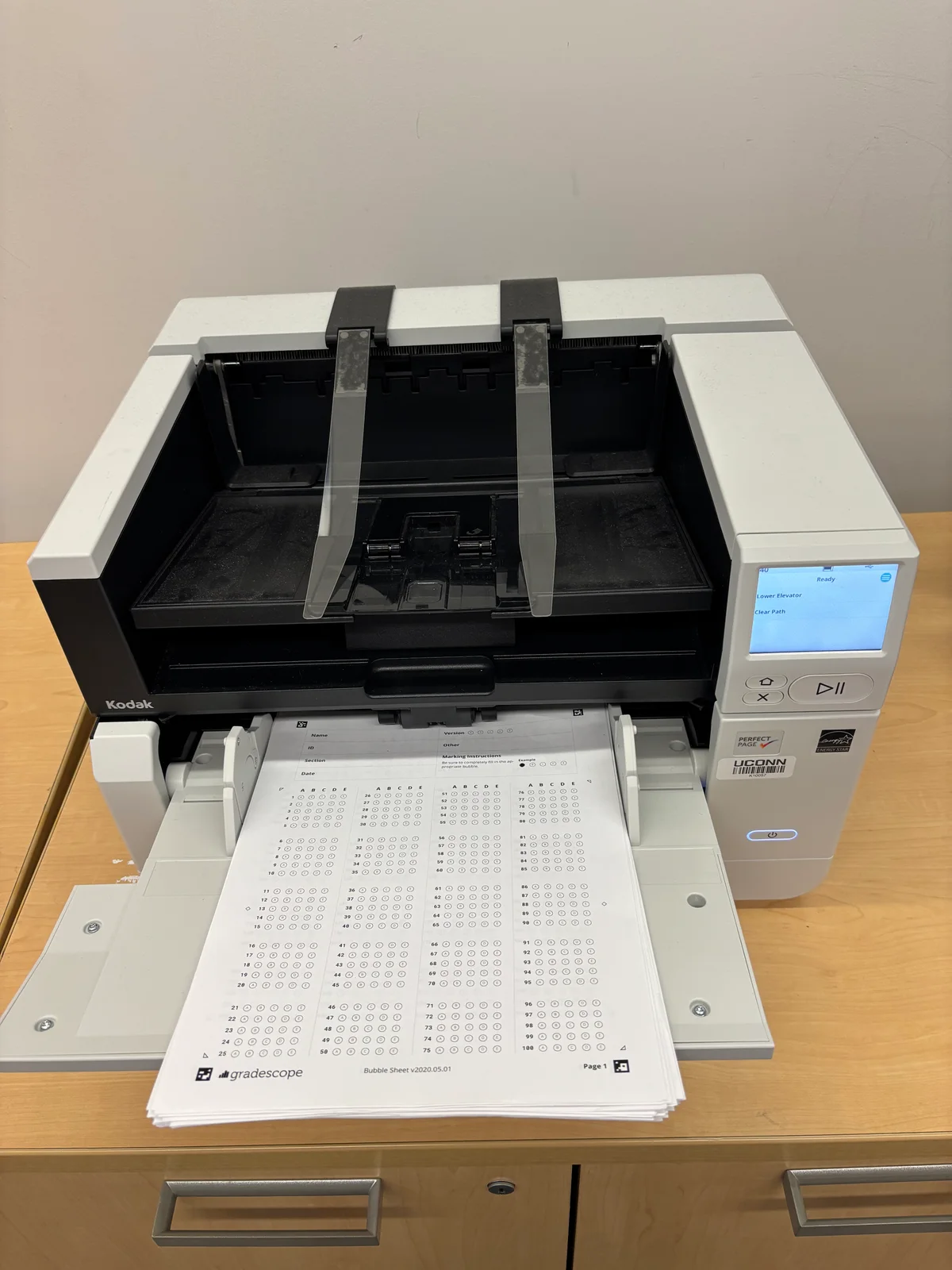
A small application with a useful stopping point
In the public introduction to his 2025 Linux Magazine article, Andrea Ciarrocchi emphasizes NAPS2's ease of use.[3] My reading of its appeal is more specific: it makes inspection part of the ordinary path from paper to file. A person can see the pages together while there is still an obvious opportunity to repair the bundle.
The Windows getting-started guide illustrates that path. The first scan prompts creation of a profile, which records the device and settings. Pressing Scan again adds another scan using that profile.[4] Back at the page workspace, drag-and-drop ordering, rotation, cropping and automatic deskew provide ways to correct the sequence and presentation.[1]
For the imaginary missing attachment, the practical response is to scan it, move its thumbnail into the right position and review the assembled document. There is no need to treat the feeder's first pass as the final editorial decision. Equally, a neatly ordered thumbnail grid is only a starting point for checking: open the pages large enough to inspect the edges and small print.
The profile remembers the setup
A profile carries choices that otherwise have to be rediscovered: paper source, page size, resolution and color mode. The source can be the flatbed glass, a feeder, or a duplex feeder where the hardware supports it. Those settings describe different physical jobs; selecting Duplex cannot supply a missing duplex mechanism.[5]
On Windows, scanner access also depends on the interface. NAPS2's guide distinguishes WIA and TWAIN, which use the manufacturer's driver, from eSCL for compatible modern network scanners. If a device does not appear, changing the interface or installing its driver may be necessary.[4] The application offers a common workspace, but a successful installation still needs a successful conversation with the particular scanner.
Profiles also deserve names that explain their purpose. For a small office, I would make a recognizable distinction between a routine feeder job and a color scan from the glass, then test each with representative paper. Someone needs to own those choices when several people share the machine. UConn's guide supplies a concrete example: its default profile is for single-sided Gradescope exams, with instructions against changing optional settings for that task.[2]
One scan is not necessarily one document
The batch interface makes a subtle distinction explicit. A single scan means one operation of the scanner; with a feeder, that operation can capture many pages. Multiple scans can instead pause for the operator to change the paper, or proceed after a fixed delay.[6]
Output has its own choices. A batch can load images into the workspace for review, combine everything into one file, or save multiple files. With multiple scans selected, “One file per scan” groups by scanner operation; “one file per page” splits more finely. Patch-T separator sheets offer another way to mark document boundaries within a feeder load.[6]
Imagine three letters, each with two pages. Feeding all six sheets once does not tell the software where one letter ends. The grouping must come from the chosen output rule or explicit separators. For an unfamiliar collection, loading the images for inspection is a sensible first pass. Once the boundaries are understood and repeatable, automation has a clearer job.
Blank-page removal needs the same care. NAPS2 exposes white and coverage thresholds, and its documentation describes adjusting them when nonblank pages are mistakenly skipped.[5] A faint note on a reverse side is a reason to compare the output with the paper before trusting the setting across a whole box.
Search comes after assembly
OCR makes the saved PDF searchable. In NAPS2, the user downloads the relevant language data, selects the language and enables the searchable-PDF option. Recognition normally happens while saving; an optional setting runs it after scanning, although subsequent page edits invalidate those results and require recognition again.[7]
Existing PDFs have a boundary worth knowing: NAPS2 leaves pages that already contain text alone and applies OCR to pages without it. Importing a poorly recognized PDF therefore does not promise a fresh interpretation of every page. Nor does the application directly export OCR as a text file; its documentation suggests copying text from the saved PDF in a viewer.[7]
These distinctions suggest two separate checks. Read the visible document for completeness and legibility, then search for a few distinctive words and compare copied text with the page. Searchability cannot establish that an attachment was scanned, or that a lightly marked reverse side survived blank-page removal.
Let repetition earn the script
Once the manual workflow is reliable, NAPS2's command-line interface can use a named profile or import existing files. Its documentation uses -n 0 for conversion jobs that should perform no new scan, and --ocrlang to select recognition languages.[8] Those are useful controls for moving a settled routine into a script.
For an individual or a small team, I would begin with a short, awkward bundle: mixed orientation, a two-sided sheet and an attachment added late. Check the saved file in another viewer and make sure it reaches its intended folder. A larger operation also needs someone responsible for configuration, exceptions and storage. NAPS2 supplies a practical place to assemble the pages; the operator still decides when the document is complete.
Sources
- NAPS2, official project homepage — supported platforms, page editing and output formats; checked November 3, 2026.
- UConn Information Technology Services, “Using the ITS High-Speed Scanner” — Homer Babbidge Library workflow, profile guidance and the photograph of documents in the feeder.
- Andrea Ciarrocchi, “Don't Sleep on NAPS2,” Linux Magazine, issue 296, 2025 — public introductory excerpt discussing the project's emphasis on ease of use.
- NAPS2, “Windows Scanning” — initial profile setup, repeated scans and WIA, TWAIN and eSCL device access.
- NAPS2, “Profile Settings” — paper source, image settings and the thresholds used to exclude blank pages.
- NAPS2, “Batch Scanning” — scanner operations, output grouping and Patch-T separators.
- NAPS2, “OCR” — language setup, recognition timing, treatment of imported PDFs and text-export limitations.
- NAPS2, “Command Line Usage” — named profiles, import-only conversion and OCR language options.